
How do I create my church and invite others?
With an account your library stays the same on phone and tablet; with a church you share it with your team. It is optional: without an account everything stays on the device.
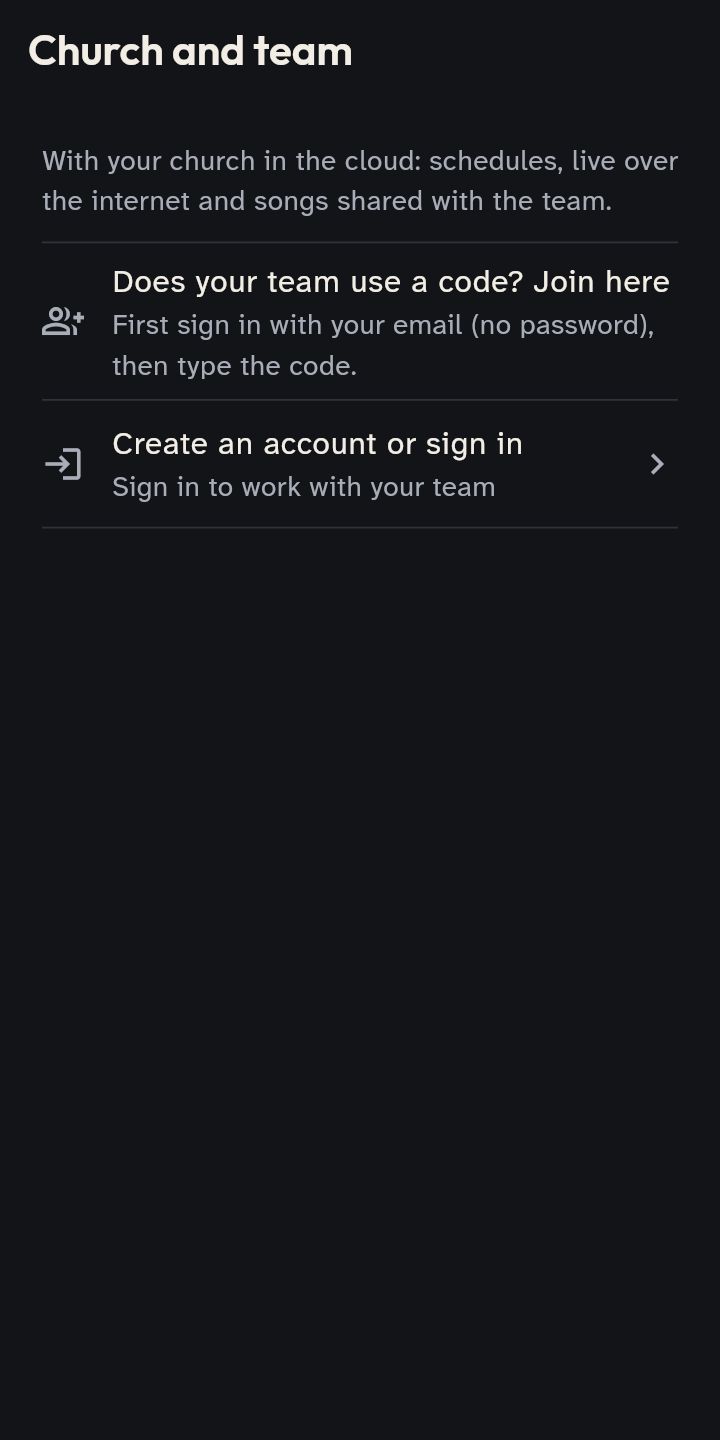
The account
- From the start: I work with a team; or, on the Setlists screen, Connect to your team; or Settings → Church and team → Create an account or sign in.
- Enter your email, tap Send me the code, enter the code you receive and tap Sign in. No password; your data stays in Europe.
The church and its teams
- On the same screen tap Create your church, enter the name of the church and of the first team (suggested: “Worship team”) and accept the consent. You become church admin.
- In Settings → Church and team, open the church → Invite someone → Coordinator or Musician: you get a code to share. It is valid for 7 days, also for several people.
- The others, once signed in: Settings → Church and team → Join with a code.
- Need more groups (the worship team, the youth…)? With two or more teams, tap New team in this church on the church page. With a single team the teams stay out of sight: the church and its team are one page.
Roles
- Church admin: manages all the teams of the church.
- Team admin: everything, including invites, roles and who edits songs.
- Coordinator: plans setlists and edits songs.
- Musician: sees and plays everything; with Can prepare setlists also setlists. Songs can be edited if the admin chooses “All members”.
Good to know
- Above Library and Setlists choose Personal, the church or the team: that is where you look and save.
- One of your songs in the team: ⋮ menu → Share with a team (it makes a copy). One of your setlists: Move to the team.
- It syncs by itself. If you see “The cloud no longer accepts the sign-in”, check the device’s date and time, then Sign in again.
- Live sessions never go through the cloud: they work on the local network, even without an account.
- Squads, answers and absences: schedule guide.