
How do I import my songs?
Bring in the songs you already have: text files with chords, exports from other programs, PDFs and photos.
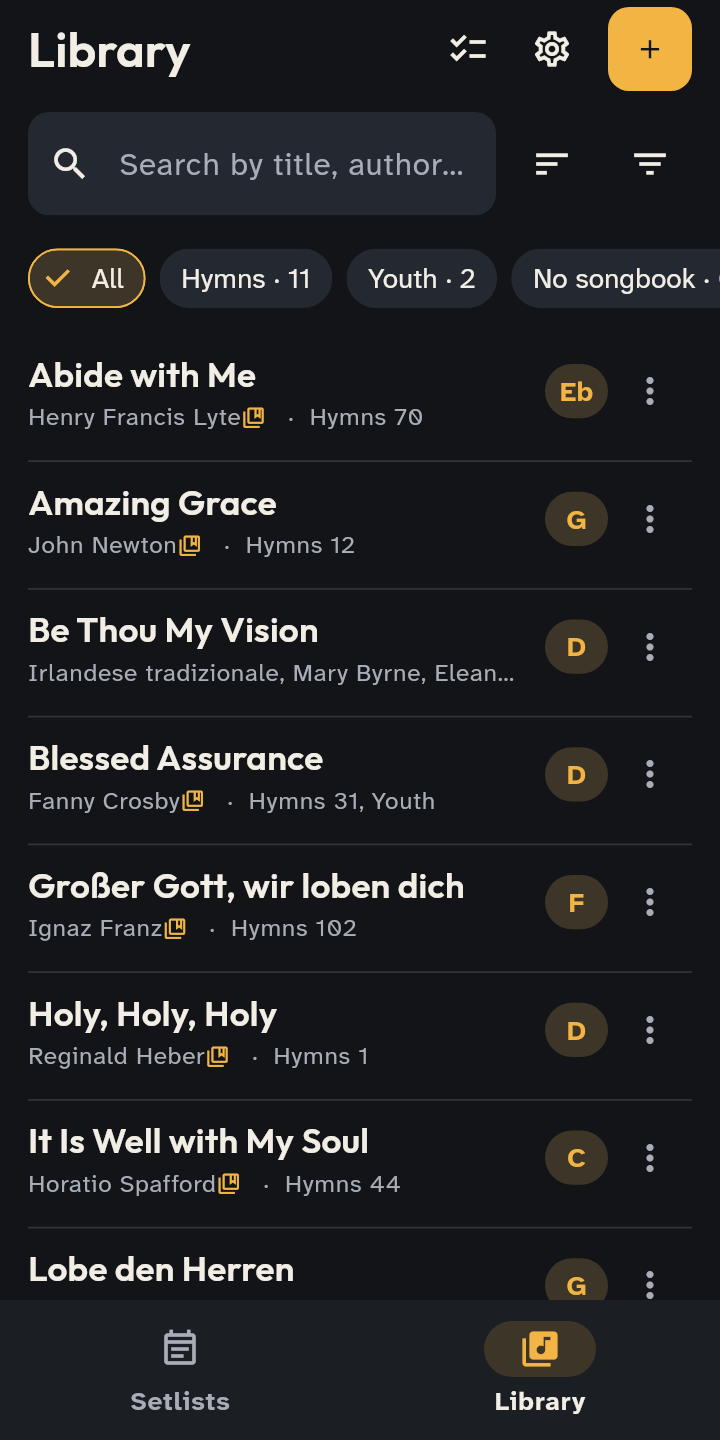
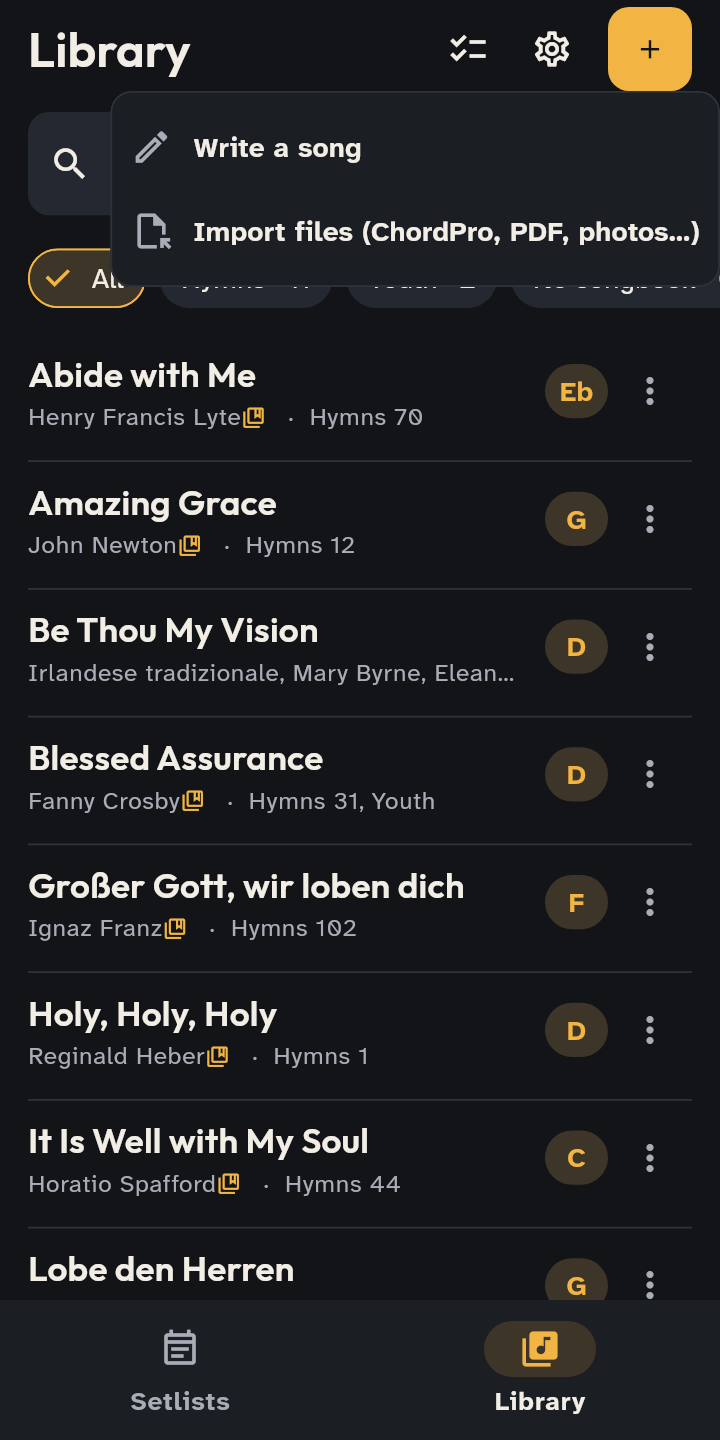
- 1 The Library with your songs.
- 2 Add → Import: choose the files (several, or a zip, too).
- Open Library and tap Import (the page icon at the top). If the library is empty there is an Import a song button.
- Choose one or more files. On a phone the picker shows every file: pick the right ones yourself (press and hold to choose several).
- One song: check the preview (lyrics language, unrecognized chords) and tap Save to library. Several files or a zip: choose the songbook to put them in, then read the summary.
Formats: ChordPro (.cho, .chopro, .pro and SongSelect’s .txt), text with chords above the lines, OpenLyrics (OpenLP’s export), OpenSong, OnSong, VideoPsalm songbooks, SongbookPro backups (.sbpbackup: songs, PDFs and photos, songbooks and setlists), PDFs and photos, ZIP archives of these files.
Convert with AI
For difficult sheets (handwritten chords, complex layouts, faded scans) there is the conversion with AI: Claude, Anthropic’s model, reads the page and returns lyrics, sections and chords. It needs an account and a church where it is turned on (free during the test: write to us); people who can edit the church’s songs can convert.
After you import sheet music (a PDF or photo with no lyrics) the app offers it under the song: “Get the lyrics and chords from the sheet?”, with Convert with AI or Recognize the text, or Not now. In the Library, songs that are only a sheet have the row Sheet only · convert with AI: one tap and it starts.
- One song: open it and tap Convert with AI (the sparkles icon, at the top). For a PDF choose the pages, then Convert, or With more care for the hardest sheets (counts 3 pages per page). The result opens in the editor on Chords, to compare with the sheet: check it and save.
- Several songs: in the Library tap Select, pick the songs and tap Convert with AI. From 10 pages you can choose Now or Within a few hours: usually under an hour, at most a day, with a notification at the end, for half the pages.
- Converted songs wait in To check, among the Library’s filters: the least certain first. Each song says which file it comes from (PDF or photo); Compare puts the sheet beside the converted lyrics. For each one: Looks good, Fix, Try again with more care (it shows the pages it costs and how many the church has left) or Keep only the sheet.
Good to know
- Photos and PDFs zoom with two fingers. Camera photos are made lighter on import (about half a megabyte each): still readable, and they take less room on the phone and in the cloud.
- Photos and PDFs are shown as they are. To get lyrics and chords from them, use the offer under the song you just imported, or open the song and tap Recognize the text (the scanner icon at the top); the text opens in the editor on Chords, to compare with the sheet. It works on Android and iPhone; handwriting and pale scans give poorer results.
- A number at the start of a file name (“123. Title.txt”) becomes the song’s number in the songbook.
- When importing several files, identical songs are skipped; other versions of a song you have are listed in the summary, where you can delete the new copy.
- Translation of a song you already have: the song’s ⋮ menu → Add a translation…
- From SongSelect download the ChordPro file; from OpenLP export the songs as OpenLyrics.
- The app contains no songs: you use your own, under your own licence (there is a field for the CCLI number).