
How do I plan a setlist?
A setlist is the plan of a service: songs, moments, keys and who leads.
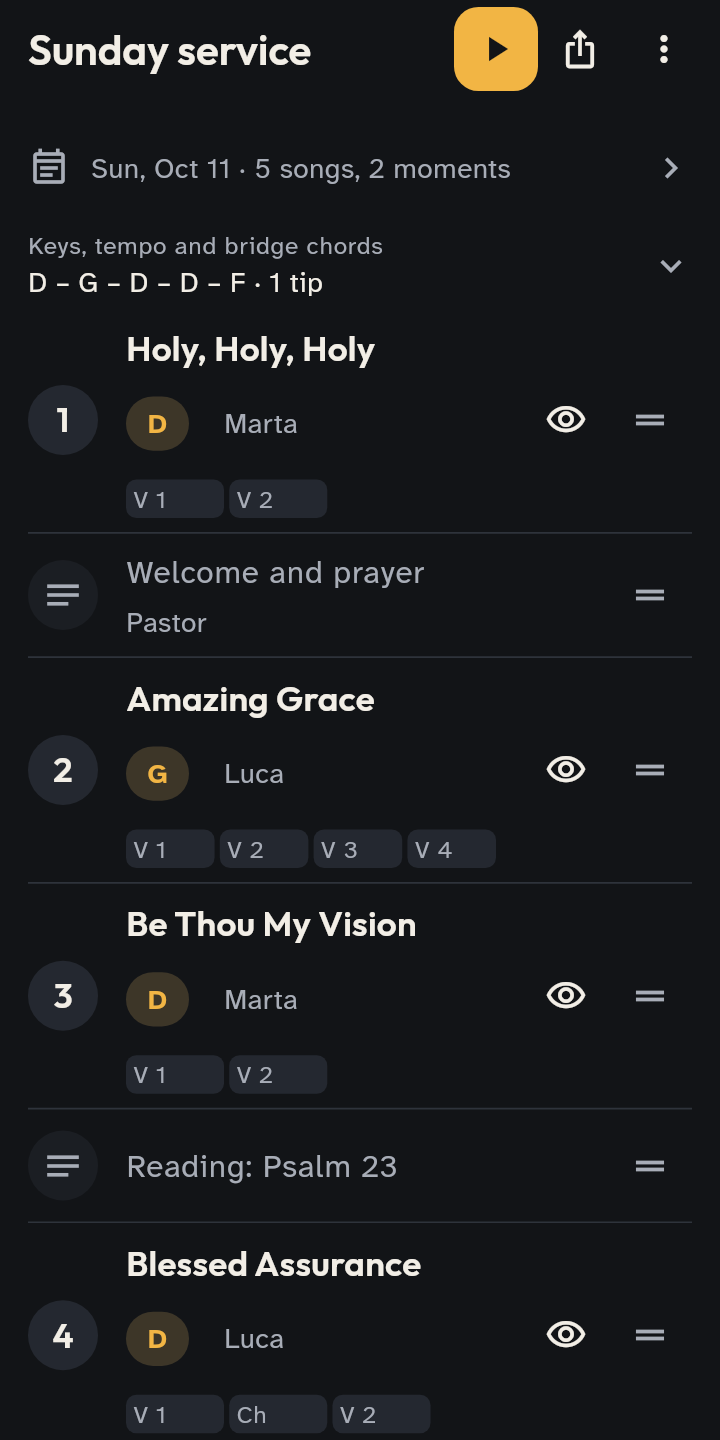
- 1 The setlist: songs and moments, with keys and who leads.
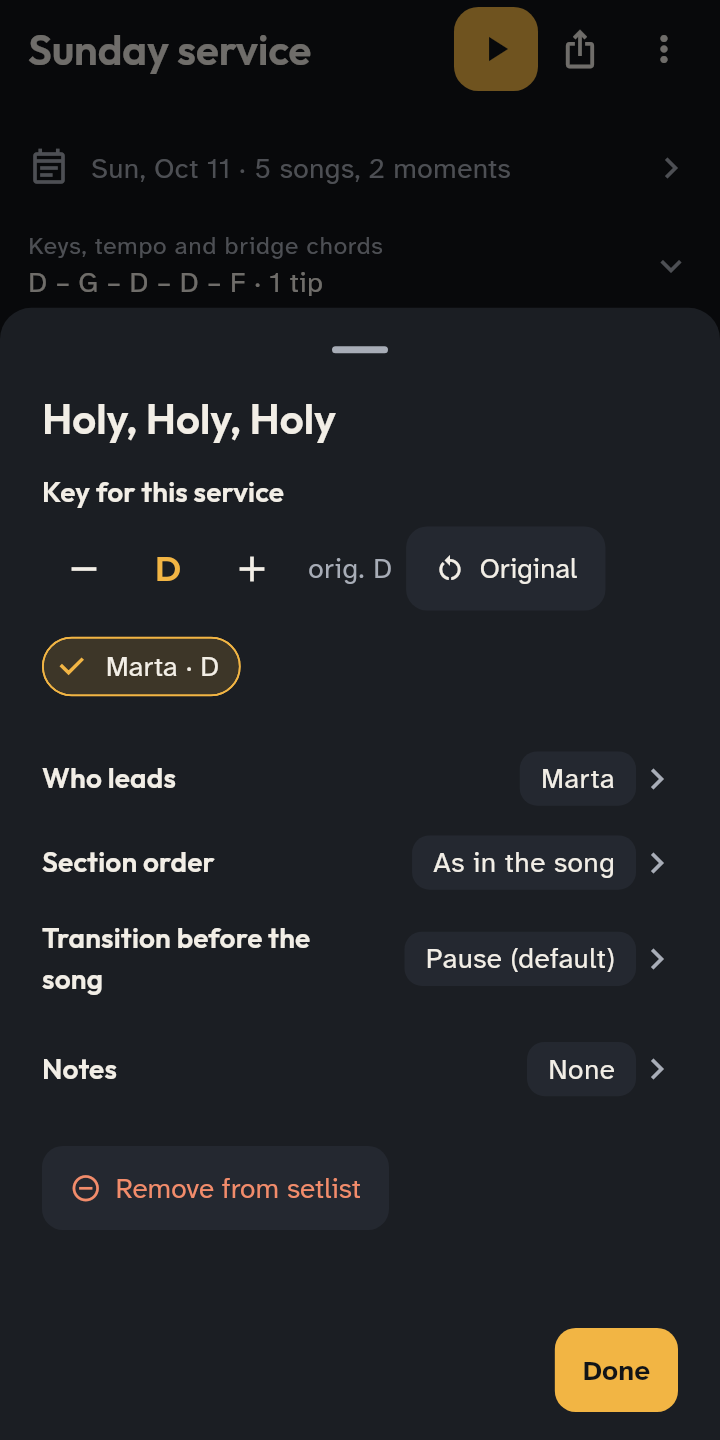
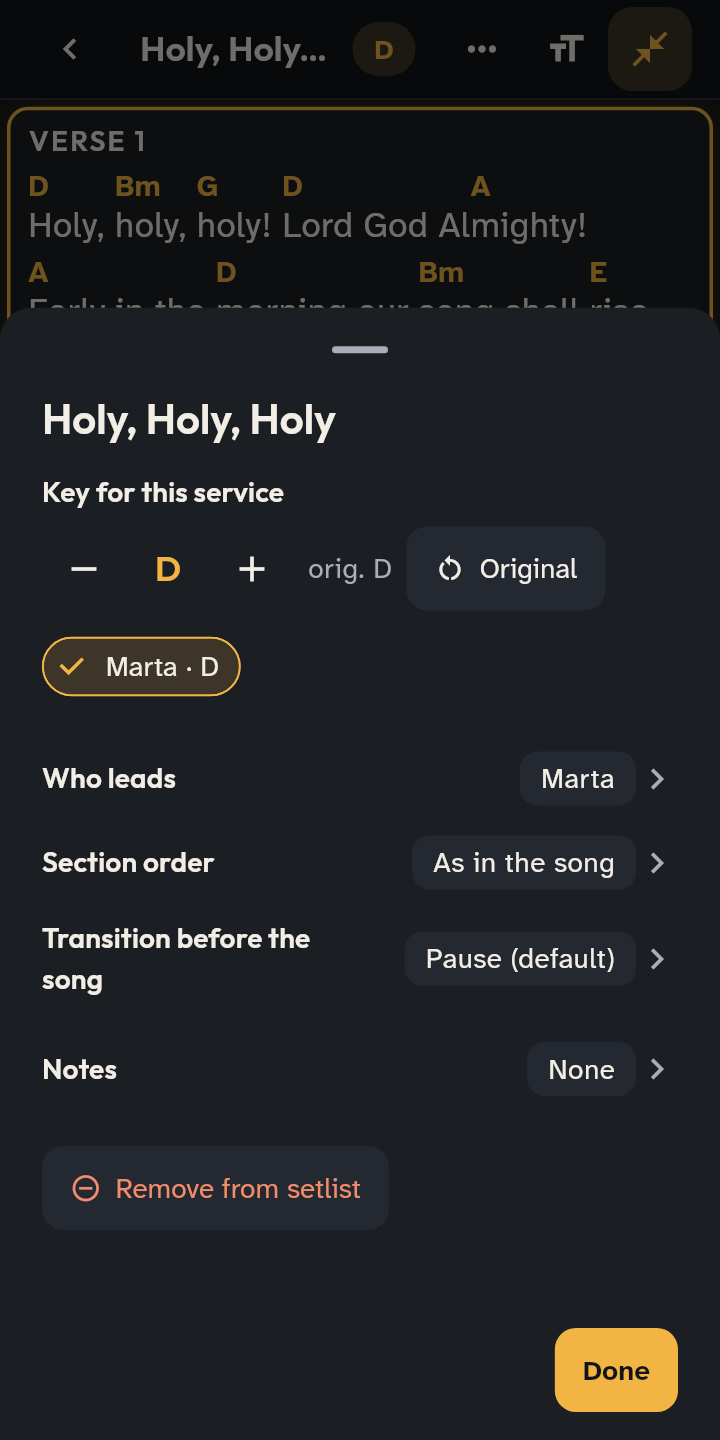
- 2 Tap a song: the key for that service, who leads, order, notes.
- 3 Start: on stage one item at a time.
- In Setlists tap New setlist. Then choose the date (the app proposes next Sunday). Your templates are at the bottom of the page: tap one to make a setlist from it, the pencil beside it to edit it.
- Add song to pick one from the library; Add moment for prayer, announcements, a reading…
- Tap an item to choose the key for that service, who leads, the section order and notes. Drag ≡ to move it. No need to save: every change is saved at once.
- On the day, tap Start: on stage you see one item at a time, and Next moves on (on a phone it is the amber ⏭ button at the bottom right).
Good to know
- From the Library: press and hold a song to see its preview, then tap Select to choose several and Add to a setlist. They arrive in the order you chose them.
- The setlist’s ⋮ menu: Duplicate and Save as template, to start from the same outline every week.
- Free rehearsal: choose songs as you go, with nothing prepared.
- Key and leader from the row: tap a song’s key to change it with − and + (Original goes back); below are the keys each singer last sang it in. Tap the leader’s name to change it; with nobody, the row says Who leads?.
- On the row: the song’s position number; the details row shows the start time. In “Add song” the Recent filter offers the songs used lately, with the key of the last time.
- Notify the team: the button under the title (with an account) sends a notification to those on the squad; after a change it becomes Notify again, and the setlist says when the last notice went out.
- Last change: under the title you see who changed the setlist last, and when.
- On a tablet the editor has two panes: the setlist on one side, the chosen song on the other.
- With an account, pull the setlist list down to update it from the cloud at once.
- In the song, “Last time” shows the date, key and who led.
- Section order: sections are added at the end and can repeat. Tap a block to move it earlier or later, change how many times in a row it is sung (×2) or remove it.