
How do I start a live session with the team?
With live, every device of the team follows the leader: song, section and cues. No internet needed, and it is free, with no limit on people.
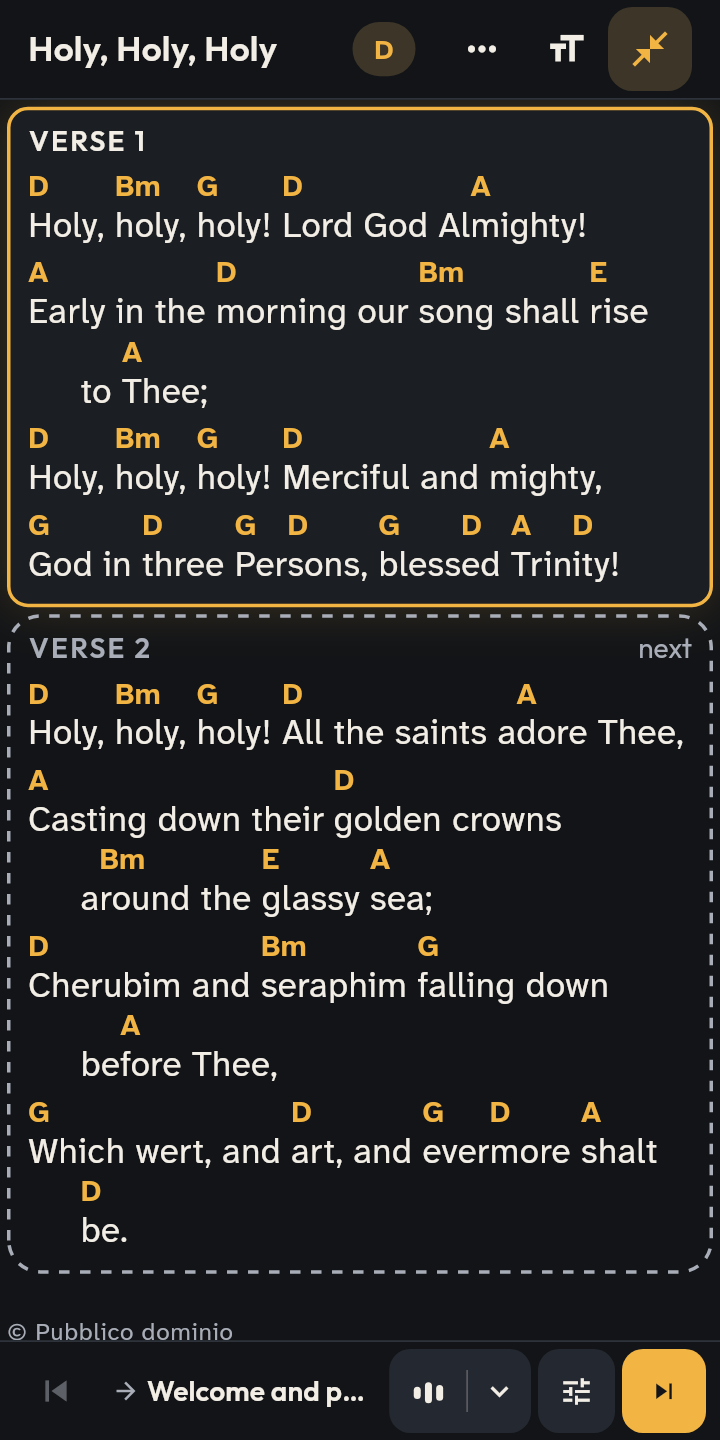
- 1 On stage, tap Live.
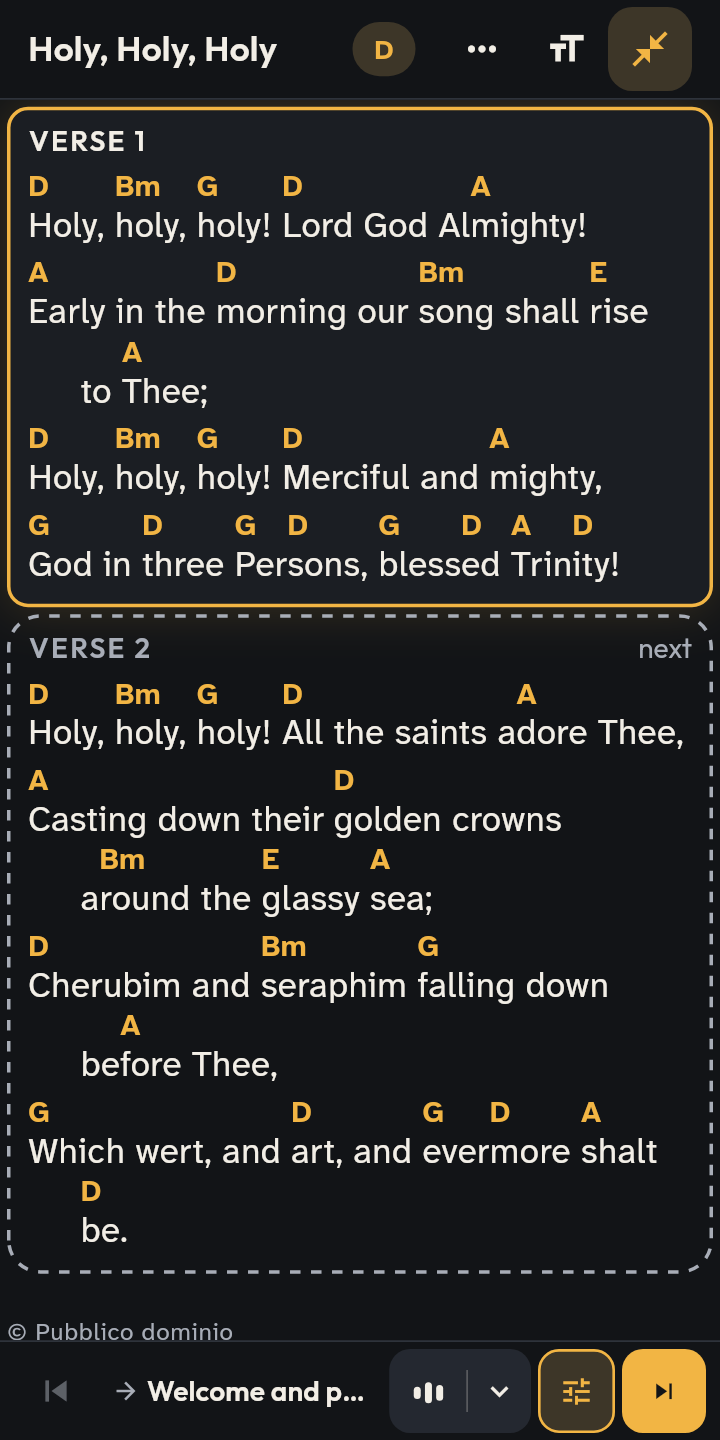
- 2 The live session is on: the others have joined.
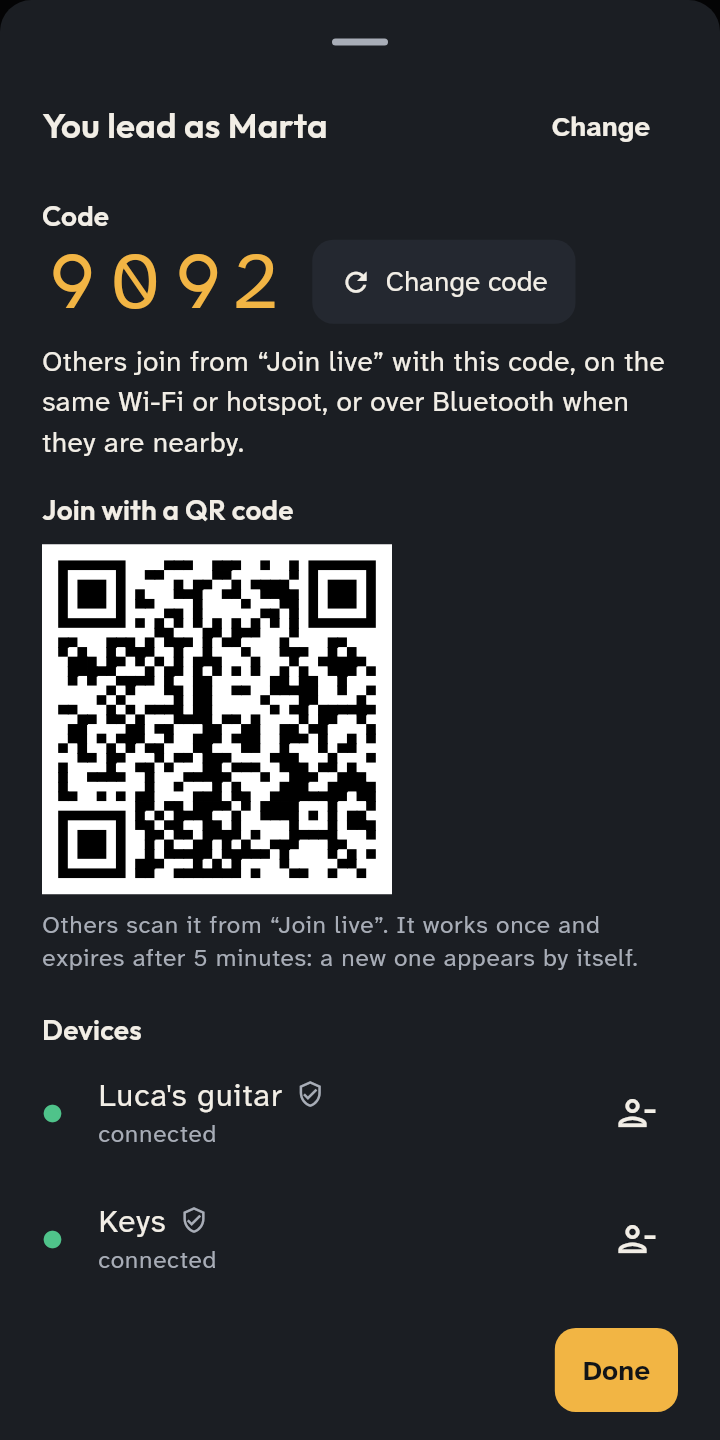
- 3 Tap Live for the code, the QR and who is connected.
The leader
- Everyone on the same Wi-Fi, or on a phone’s hotspot. With no network at all, phones nearby find each other over Bluetooth.
- Open the setlist on stage (Start) and tap Live in the bottom bar. It starts at once under the name in your Settings (it asks only if you have none); you change it from the green pill.
- Tap the green Live · n pill: you see the 4-digit code to tell the others, and who is connected.
- Want it to start with the stage every time? Turn on Also the live under Start (on the next service or in the setlist).
Everyone else
- In Setlists tap Join live (the Wi-Fi icon at the top).
- With a single session found you connect by yourself after a moment (“Connecting to…”, with Cancel); with several, tap the right one (those found over Bluetooth show its icon). Enter the code if asked. The stage opens by itself and follows the leader.
During the session
- Dropped devices rejoin on their own: if a phone loses the network or the app closes, it comes back to the live as soon as it can, at the leader’s place.
- Cues: the megaphone beside Live sends Verse, Chorus, Bridge, Again, End, Stop, Softer, Louder: they appear at the top of every device.
- The congregation’s screen: if the church has a screen link (Church → Projection) and nobody directs the projection, your phone publishes it (with a control desk on another device: projection guide). Between songs the screen rests until you touch the section (or press the pedal); Screen in the green pill rests it or wakes it whenever you like.
- A screen without internet: the live sheet shows the «Screen for the room» address (http://…/projection/): open it in the browser of a computer on the same Wi-Fi, full screen with a click. It works without a link or an account too.
- Bluetooth: on from the start (the first time the phone asks for permission); turn it off in the live sheet, under More options. Over Bluetooth the setlist, lyrics and cues arrive; PDFs and photos larger than about 300 KB do not.
- Who can move on: only you, the team’s coordinators and the devices you allow, or anyone.
- The setlist’s songs reach every device, even where they were missing.
- A device that joined once with the code joins without it next time (Trusted devices).
- Leaving the stage does not end the session: the green Back to the stage bar takes you there. It ends with End live.
- On iPhone and iPad you can leave the app for a moment (a message, a notification): the live stays connected for about half a minute.
If it does not work
- The session does not appear: check that you are on the same network. “Guest” networks often keep devices apart: use a phone’s hotspot, or in Join live tap Can’t find it? and type the address the leader sees under “If they cannot find it”.
- The Bluetooth session does not appear: Bluetooth on in both phones, permission granted (on Android “Nearby devices”), phones a few metres apart.
- iPhone and iPad: the first time, allow access to the local network. If you denied it: iOS Settings → Chenaniah → Local Network.
- “The leader has another app version”: update everyone to the latest version.