
Pads, click and pedals
On stage, in the bottom bar: a sound bed in the song’s key (free ones to download too), the metronome and page-turner pedals.
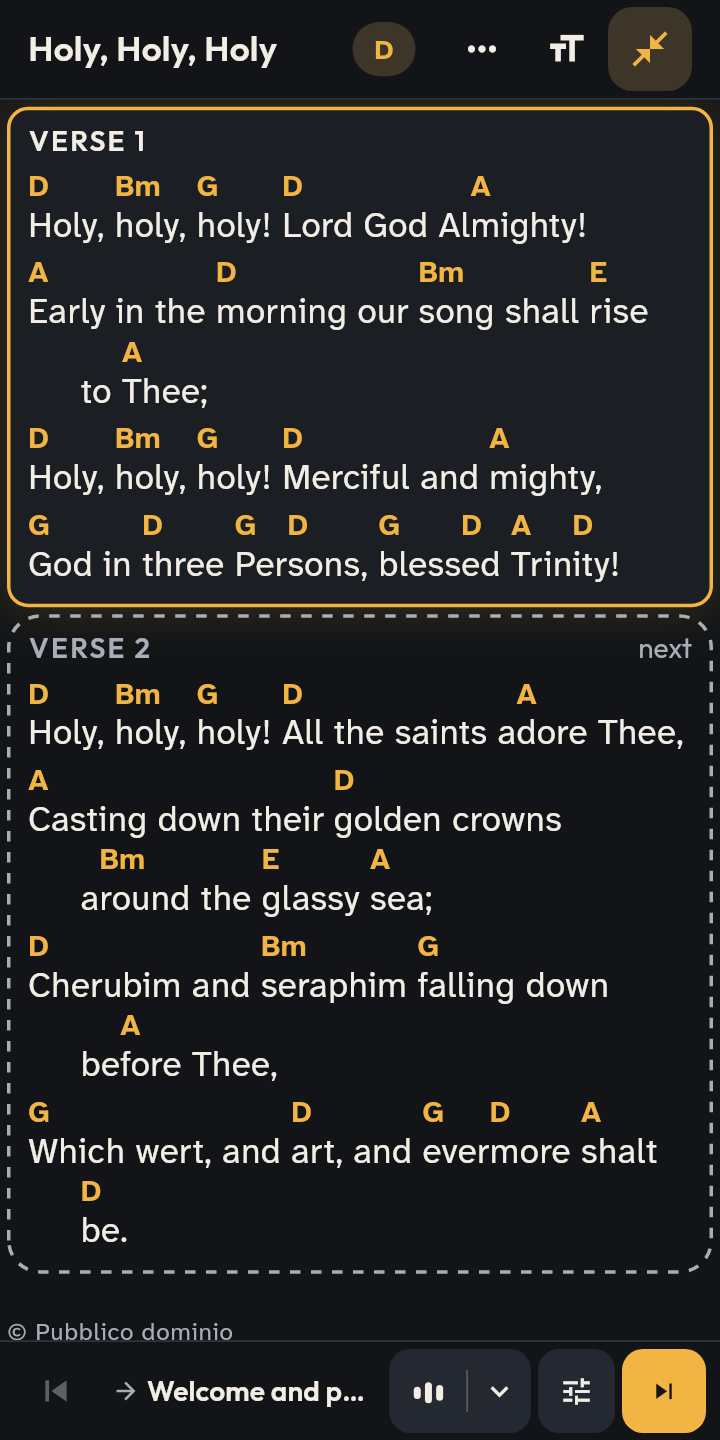
- 1 The stage, before playing.
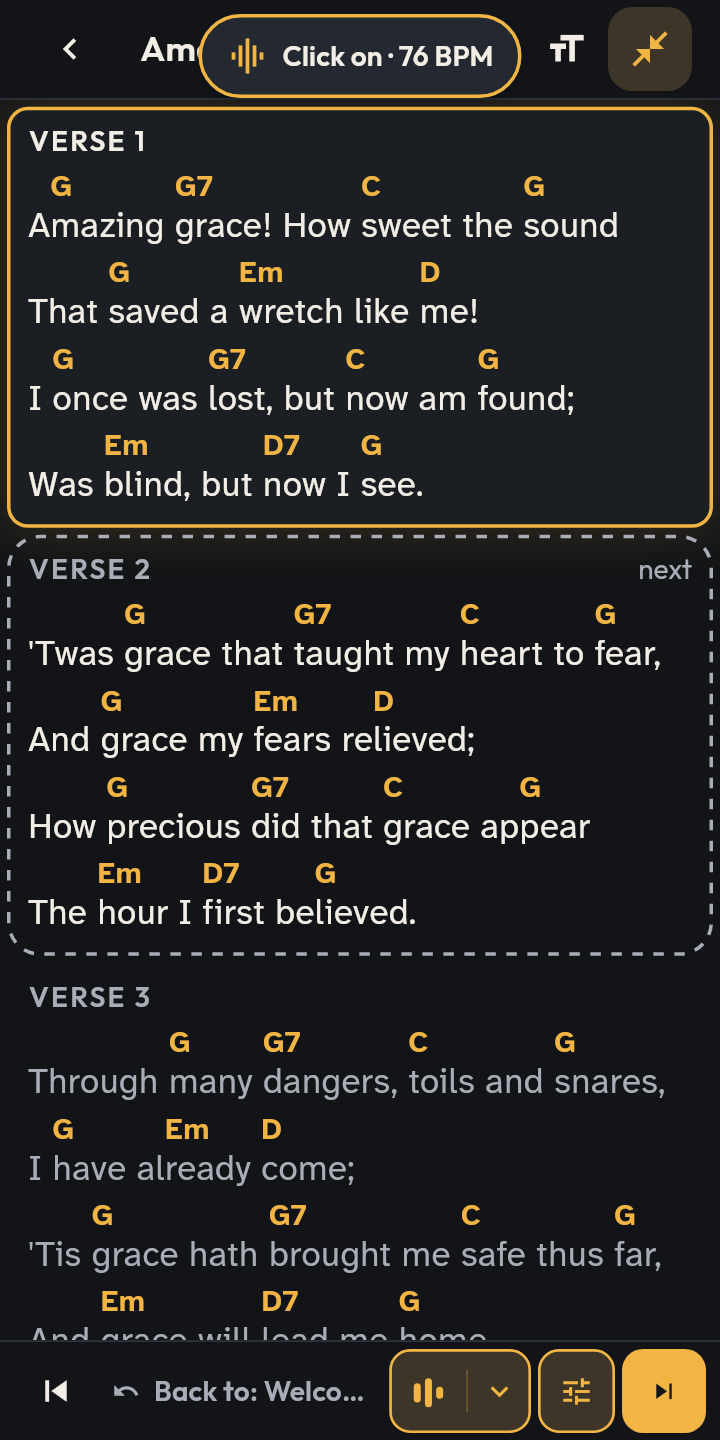
- 2 Pad in the song’s key, Click at its tempo.
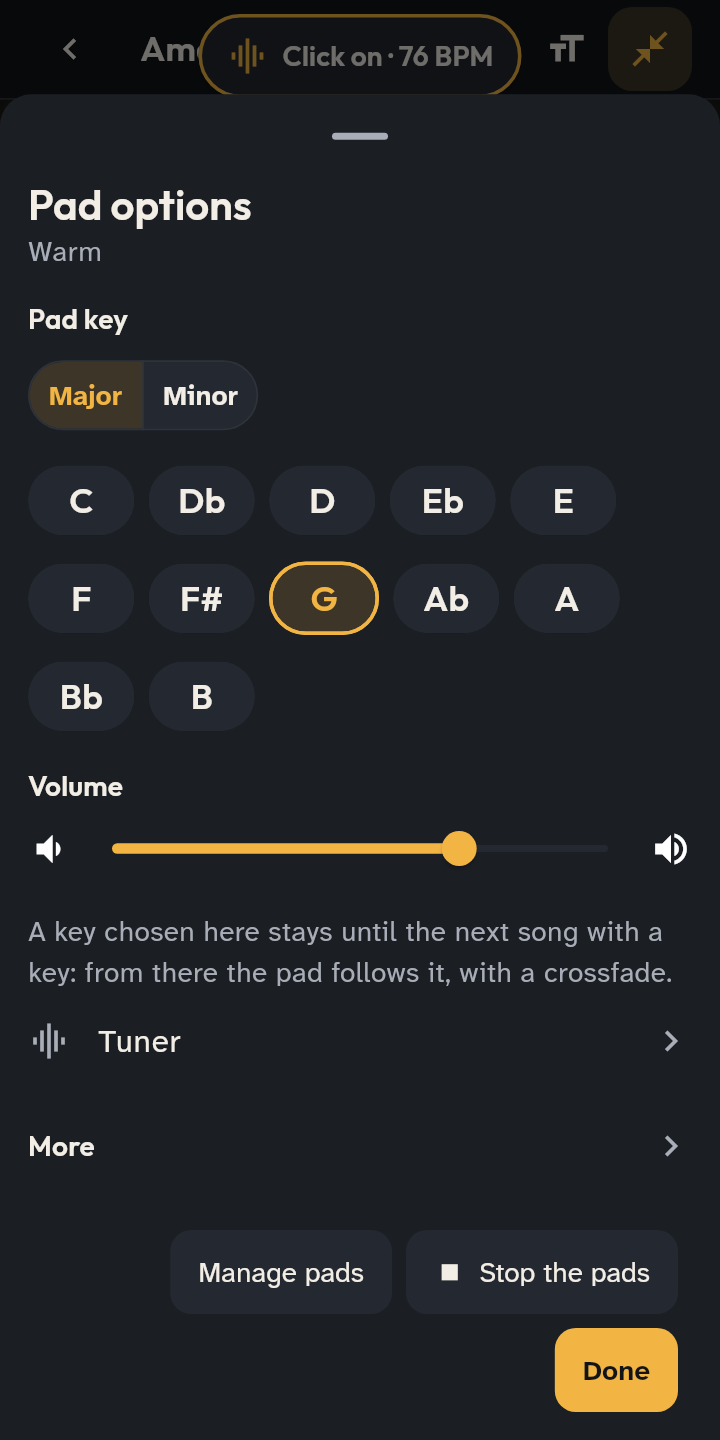
- 3 ▾ next to Pad: key, set, volume and fades.
Pads
- Free pads: Settings → Service and stage → Pads → Free pads → Download. “Foundations” by Reawaken Hymns: 12 keys, about 270 MB, best over Wi-Fi. Once downloaded they work without internet. Thanks to Reawaken Hymns, who offer them for use in church: more of their pads on their site.
- Your own pads: on the same screen, Import pads with your audio files (WAV, MP3, OGG, FLAC, also in a zip), one per key. The key is read from the file name: “Pad - A.mp3”, “Warm Pad Bb.wav”. Missing keys are played by moving the nearest pad.
- On stage tap Pad: it plays in the song’s key and crossfades to the next song.
- Key chosen by hand: the ▾ arrow opens Pad key, with Major/Minor and the 12 keys. On a moment without a key (a prayer) tapping Pad opens it by itself. The chosen key stays until the next song with a key, then the pad follows it again.
- Switch set on the fly: below the keys, Pad set: the pad goes on in the same key, with a crossfade. Further down, volume and fades.
- If a section has its own key (the last chorus a step up), the pad follows it.
- The pad options also hold the Tuner.
- In a live session, the device connected to the sound system can play the leader’s pads: Play the leader’s pads (it needs pads too).
Click
- Tap Click: it starts at the song’s BPM. If the song has none, choose the tempo (and, if you like, Save in the song). The ▾ arrow opens volume and moving to the next song.
- The click plays only on that device: ideal in the drummer’s headphones.
- On iPhone and iPad, pads and click play even in silent mode and keep playing with the screen locked.
Pedals and keys
- Bluetooth page-turner pedals work: Page Down, → or ↓ go to the next section, Page Up, ← or ↑ go back. At the end of a song you move to the next one.
- Slide view: in the view menu choose Slides, 1 to 4 sections at a time; you can also swipe.
- On stage the screen stays on.