
How do I change key, capo and notation?
The app keeps chords independent of the notation: they transpose and display the way you like.
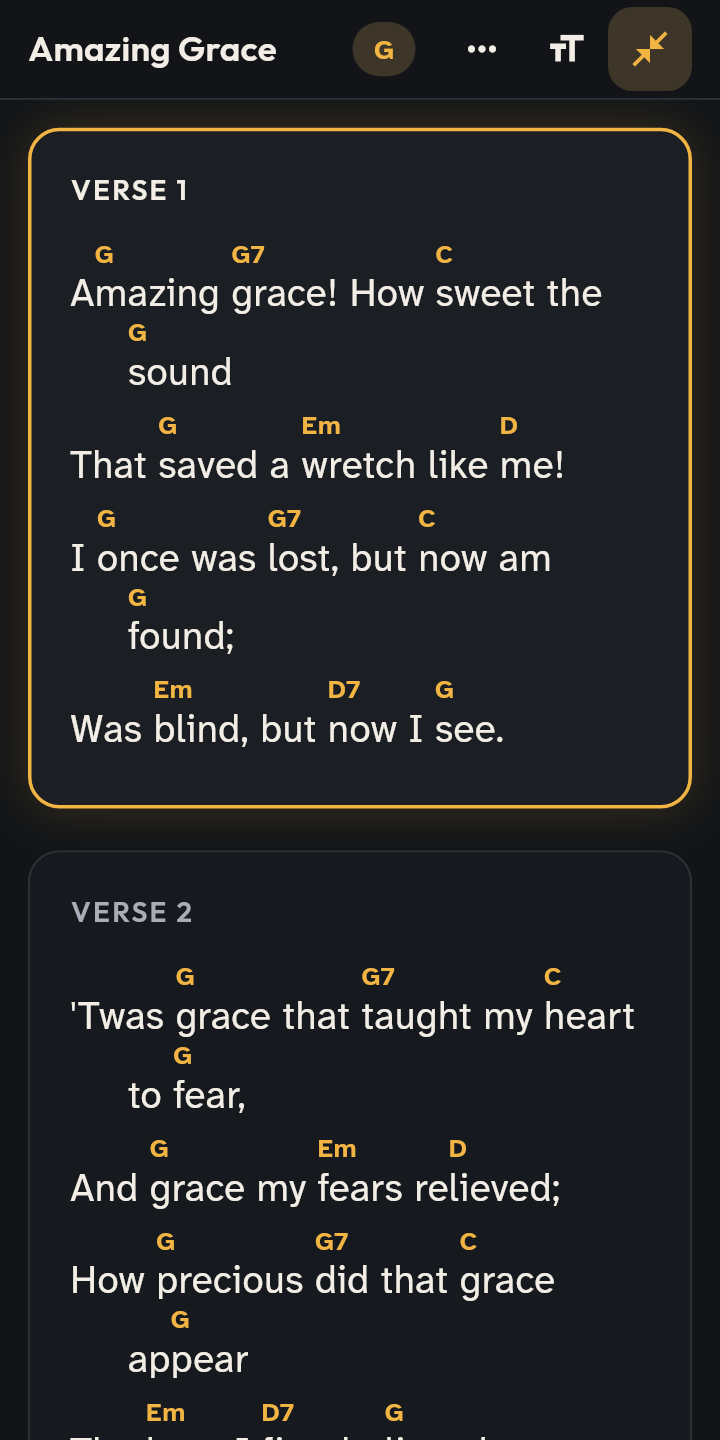
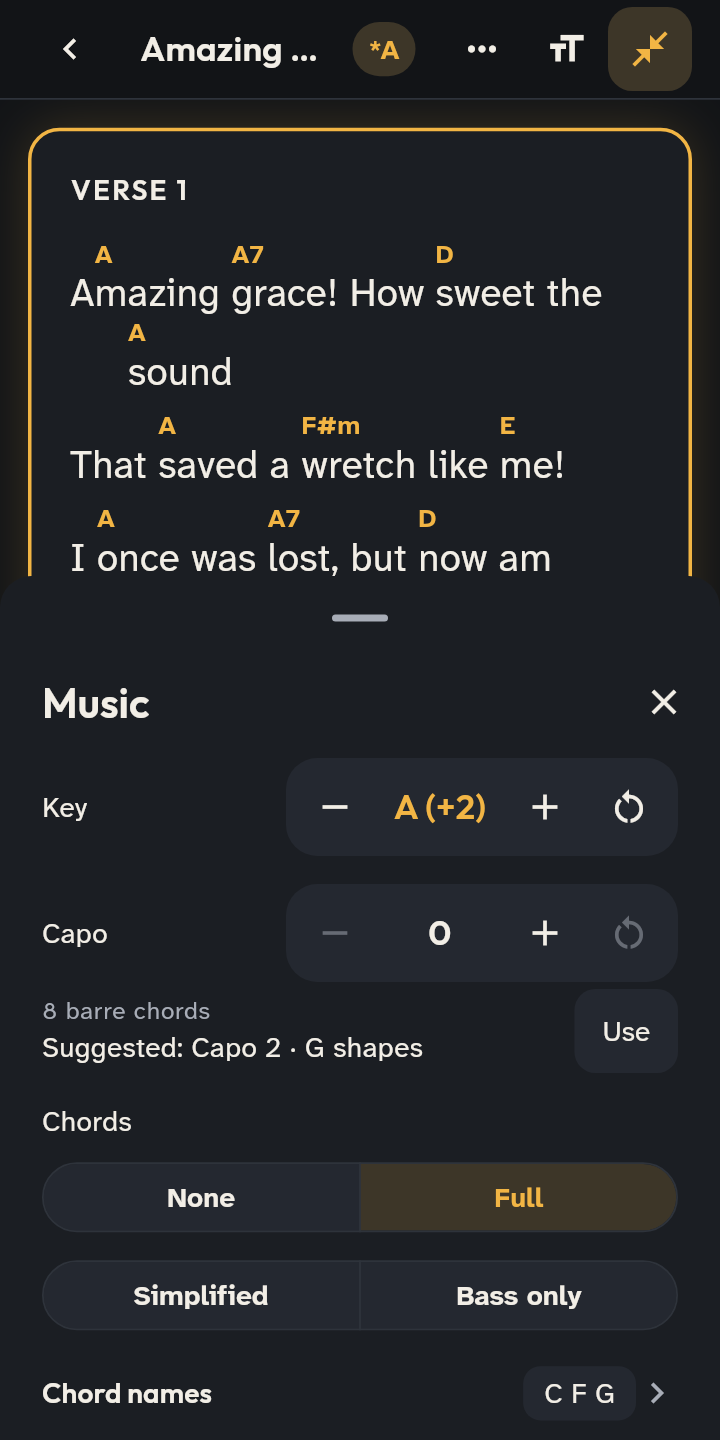
- 1 The song in its own key.
- 2 Two taps on +: a whole step up, the chords follow.
- Key: tap the amber key at the top of the song: the Music sheet opens, with the song still visible behind it. − and + move one semitone, ↺ goes back to the original key; when the song is transposed the key has an asterisk (“*D”). In a setlist the key is chosen for each service by tapping the song; on stage Save keeps a key changed on the spot in the setlist.
- Capo: in the same Music sheet, with − and +; below you see how many barre chords are left and a suggested capo with fewer barres. The × on the chip at the top removes the capo.
- Notation: Settings → Look and language → Chord notation: C D E, Do Re Mi, C D E H (with B = B flat), or automatic, following the app’s language.
- Chords full, simplified, bass only or none, and Chord names (letters or numbers): all in the Music sheet.
- Diagrams: tap a chord in the lyrics to see how to play it on guitar and piano; the speaker plays it. In the editor too, with Listen on, the chord you tap sounds.
- Tuner: under Chord options below the song (and in the pad options). Play a note: it turns amber and says “In tune” when it is right. The first time it asks for the microphone.
- Key change within a song (the last chorus a step up): in the editor’s preview, tap Section key on that section, with Move the chords too; or type {key: A} in the text. On stage the section shows “Key: A”, and the pad follows it.
Good to know
- Profiles (vocals, guitar, bass, keys, drums, tech): each remembers how you read, for example no chords for singers. On stage, switch it in the View sheet (the “Aa” button), under Profile; manage them in Settings → Service and stage → Profile.
- Larger text: the “Aa” button, or two fingers on the lyrics.
- Each song remembers capo, chords and language on this device (“Your settings”); the chip takes you back to the normal settings.
- Focus (the two arrows beside “Aa”): only the lyrics stay, the other tools are under ⋯. While it is on, the icon is highlighted in amber. On a phone it starts switched on, to leave more room for the lyrics; if you turn it off, the app remembers.
- Three levels of text on stage: the current section and the next one are at full brightness, the others dimmer.
- Phone sideways: the stage puts the controls in a column at the side, and the song keeps the whole height.
- Tablet, Compact view: the song runs in rows, one section after another, when no line would wrap; if the song does not fit, the previous view stays.
- More song on a phone: while reading, scrolling down tucks the bars away; a tap on the song or scrolling up brings them back (during a live a dot stays in their place). With Two columns (View sheet) the song goes into two columns when it fits, and always when the phone is sideways.