
How do I put the words on the screen in the room?
The congregation’s screen is a web page that follows the live session. The leader’s phone publishes it, or a control desk on a tablet, a laptop or a phone.
The screen
- Over the internet: a church admin creates the link in Church → Projection (Create the link). Open it on the computer connected to the projector, in a full-screen browser, on a smart TV or in OBS. The link lasts a year: a month before it ends, Extend by a year appears, and the screens keep working with no changes.
- Without internet: during a live session the live sheet shows the «Screen for the room» address (http://…/projection/): open it in the browser of a computer on the same Wi-Fi. No link or account needed.
- With a cable or AirPlay: connect the leader’s phone to the TV (HDMI or USB-C, or AirPlay on iPhone). While you lead a live, the lyrics go to the TV and the controls stay on the phone (“TV connected: showing the lyrics”).
- The QR icon, on the desk and among the projection controls on stage, opens Connect a screen: the three ways, with the QR code, the link to copy or send by email or WhatsApp, and the local network address.
- Church → Projection is also where the look is chosen: colours, a photo behind the words, what shows between songs, the languages, the CCLI licence, the verses per slide.
Without a control desk
With nobody at the desk, the leader’s phone publishes the screen while they play. Between songs the screen rests until the leader touches the section (or presses the pedal); Screen in the green pill rests it or wakes it whenever they like. Starting a live session: live guide.
With a control desk
- On the desk’s device, join the live session choosing Projection under Joining as, or open the setlist and choose Project this setlist. If nobody is leading, the desk starts the live session by itself.
- The first time, the app asks How do you use this device?: choose This device is the control desk. The choice stays; Switch to screen and Switch to control desk change it when needed. In Settings → Service and stage, the row In projection this device is changes it, or with Ask has the question asked again.
- From then on the desk publishes the screen and the leader’s phone stops. If the desk leaves or drops, the leader’s phone takes over by itself, with the same link.
At the desk
- On a tablet or laptop: the setlist on the left, the open item’s slides in the middle, on the right Now, where the leader is and Next.
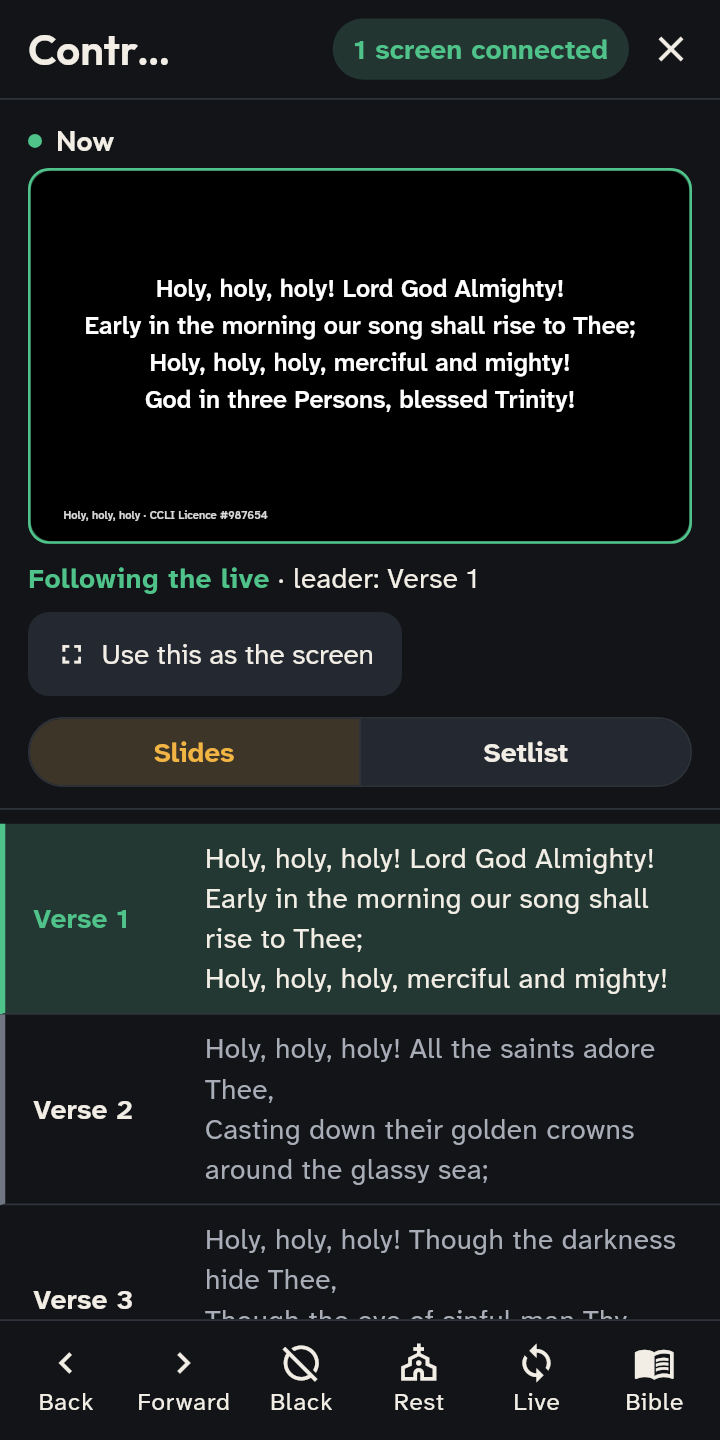
- On a phone: Now at the top, then the tabs Slides and Setlist, and six commands at the bottom: Back, Forward, Black, Rest, Live, Bible.
- Tapping an item of the setlist opens it without showing it; tapping a slide puts it on air.
- Going by hand detaches the desk from the leader, and it moves only the screen, never the musicians’ stage. The band “Manual: you are not following the leader” says so; Follow the live hooks it back. Exit hooks it back too.
- Black, Logo and Image rest the screen; another tap, or a slide, wakes it. On a phone black is always one tap away, logo and image are under Rest.
- Keyboard and clicker: left and right arrows for slides, up and down for items, 1 to 9 for a slide of the open item, B for black, L to follow the live. A presentation clicker works like the arrows.
- The top shows whether the screen receives: «1 screen connected» on the local network, «Link active» over the internet. With «No screen connected», open the link on the projector’s computer (Show the link) or check the network, and Try the screen shows how it looks; meanwhile you can prepare everything.
Bible passages
- In Settings → Service and stage → Bibles you download the public-domain translations (King James Version and World English Bible in English, and six more in Italian, German, French and Spanish): download them once, then they work offline. You can also import your own (Zefania XML, OSIS XML, OpenSong XML or VPL text), on the device only or shared with the church.
- A planned passage goes in the setlist’s moment («Reading»): Find in the Bible and type the reference, like «John 3:16-18» or «Psalm 23».
- At the desk, Find in the Bible (on a phone Bible) adds a passage on the spot: it appears at the end of the setlist and waits off air until you tap its first slide.
- A second translation can show under each verse, and every slide names the translation. The church’s starting Bibles are chosen in Church → Projection.
If it doesn’t work
- A song made only of a PDF or photos can’t be projected: the screen rests. To project it, convert it to text (import guide).
- «Song on its way»: the song is not on the desk’s device yet; it arrives by itself from the live session.
- «Live interrupted, trying again…»: the screen keeps the last slide until the desk reconnects.
- On the local network the page won’t open: the computer and the phone must be on the same network. «Guest» networks often keep devices apart: use a phone’s hotspot.