
How do I use Chenaniah on a computer?
In your computer’s browser you prepare the library, setlists and rotas with keyboard and mouse. The stage and the live stay on phones and tablets.
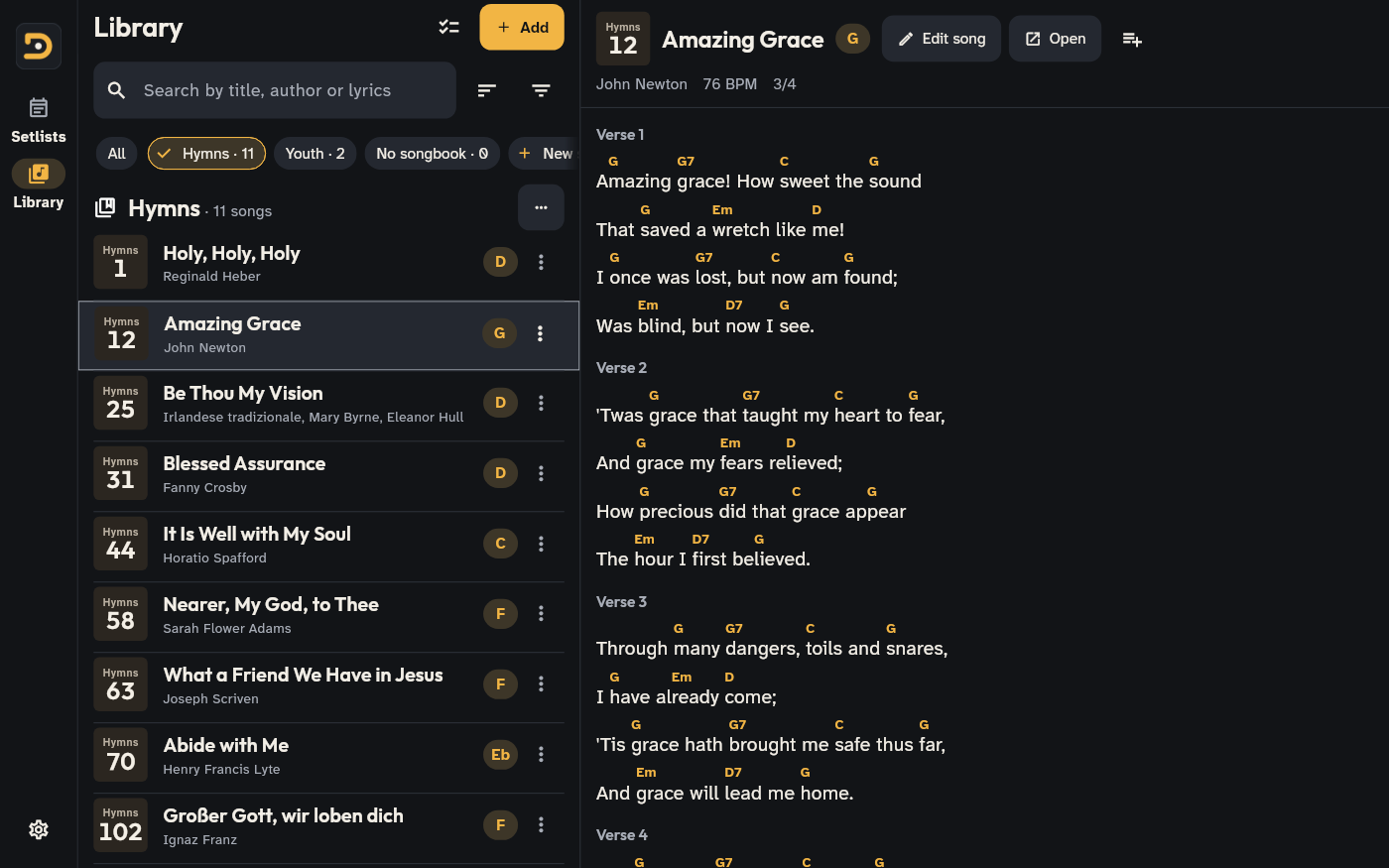
Open and sign in
- Open web.chenaniah.app in Chrome, Edge, Firefox or Safari.
- Sign in with the same account as on your phone (email, Apple or Google): your songs, setlists and church arrive. It works without an account too, but everything stays in that browser.
Library and setlists
- In a wide window the song list is on the left and the chosen song beside it: one click shows it, the second opens it.
- The editor shows a preview of the stage beside it.
- To import, drag the files onto the window.
- In a setlist the library’s songs are beside it: drag them where they belong.
- Right click a song for its preview; Select picks more than one.
Shortcuts
- / or Ctrl+F: search
- Arrows and Enter: move through the library and open a song
- E: edit the song
- Ctrl+S: save
- Esc: go back
- Ctrl + scroll wheel: bigger or smaller words
Good to know
- The team’s live, pads, click and tuner are in the app, not in the browser: the computer prepares, the stage is on the phone.
- On a church computer, sign out when you are done: the library is removed from that browser.